Roblox Studio is a very important element in Roblox Gaming. Without Roblox Studio, you cannot use all the services offered by Roblox in a proper manner. Most of the people actually don’t know how to download roblox studio.
It is not about only for creating games, but if you want to play roblox games, still you need to install roblox studio anyway.
If you don’t know what is roblox studio, then let me tell you, that roblox studio is not only a medium to play roblox games, but also it helps people to create and publish games for the roblox community.
You can download and install roblox studio only for PC and MAC OS. There are no versions yet to download it on smartphones and other devices.
Just to know stuff, here are some general PC requirements you should consider before downloading the roblox studio.
Contents
- General System Requirements for Roblox Studio
- How to Download Roblox Studio on PC for Windows?
- An In-Depth Guide to Get Roblox Studio in 2025
- How to Install Roblox Studio on PC for Windows?
- How to Uninstall Roblox Studio? For Windows & macOS?
- Follow These Steps Mentioned-Below to Uninstall Roblox Studio For Windows
- Follow These Steps Mentioned-Below to Uninstall Roblox Studio For macOS
General System Requirements for Roblox Studio
Check out the step by step methods given below to download and install roblox studio on your pc and laptops for windows.
Supported Operating Systems:
Windows XP, Vista, Windows 7, Windows 8/8.1, Windows 10.
Mac OS 10.7 Lion and Higher with Intel only Mac systems.
Google Chrome OS Version 53 or above with active Google Play Store service.
Supported System Hardware’s:
Any processor with minimum 1.6 Ghz of clock speed, At least 512 MB of Memory, DirectX 9 Graphics Card, Free Disk Space of Minimum 20 MB.
How to Download Roblox Studio on PC for Windows?
An In-Depth Guide to Get Roblox Studio in 2025
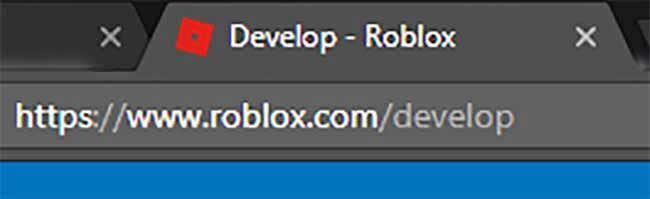
First of all, to download roblox studio, open your browser and type this link in the address bar: https://www.roblox.com/create (we used to type “develop” before it changes to “create”.)
You will see the download page appears for roblox studio like this shown in the image below.
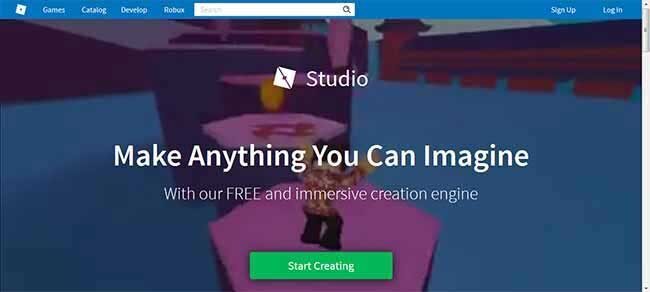
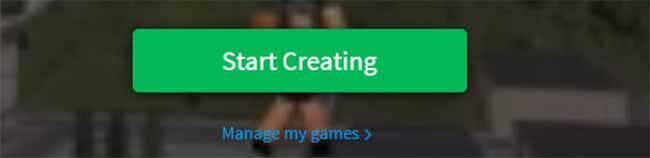
Now click on the “start creating” button given on the page.
Now you will see the site will check for the compatibility and the roblox studio availability on your pc.
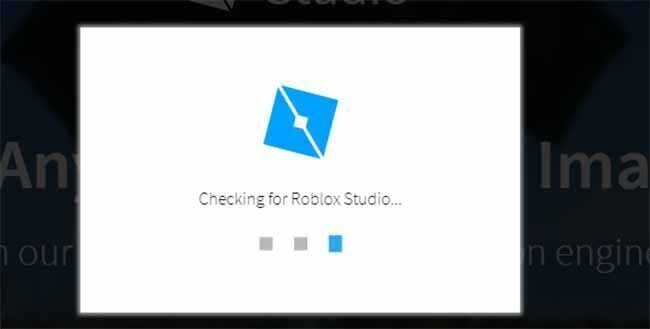
If you already have the roblox studio installed on your PC, then it will show you the message accordingly. If you don’t have roblox studio installed before, then it will provide you the file to download roblox studio.
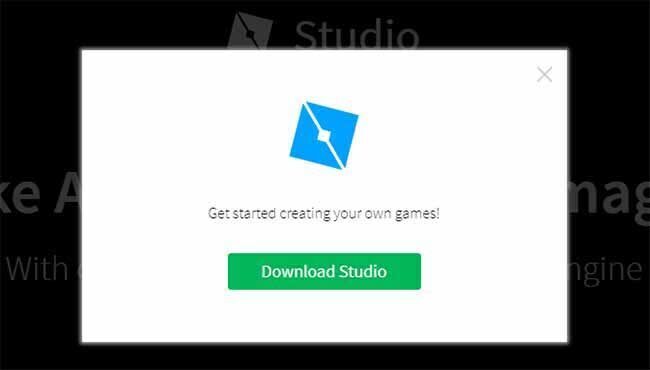
Now just click on the download studio button shown in the image above to download the studio. The latest version of the roblox studio launcher is about 1.2MB in size. The download will not take much time for this size of file.
How to Install Roblox Studio on PC for Windows?
After downloading roblox studio, now it’s time to install roblox studio on your pc. Now search for your downloaded roblox studio launcher file you just downloaded. It should be there in your downloads folder. The file should look like this in the image below.
Now just double-click on the launcher file and click next, the installation for the studio will get started. It is necessary to keep your internet connection ON while installing the studio. It needs to download additional supportive files for the roblox studio while installing it. If you disconnect the internet connection, the installation will not get completed.
Since there is still some downloading happening for supportive files during the installation, it may take a longer than expected time to install the roblox studio entirely. Do not worry, this does not mean that roblox studio is not installing, it’s just taking the longer time to download the files.
Have patience and relax until it gets installed completely. Although it depends on your internet connection and a processor of your computer system.
Once installed, you can see a new roblox studio icon created on your desktop.
Just open the studio through that icon, and you can now log in the roblox studio using your existing login credentials or you can simply create the new sign up for it.

If you are unable to login in the roblox studio or having difficulty in opening it, then try to uninstall roblox studio and reinstall it again. If there was any issue happened during installing the studio before, the reinstallation will solve the problem now.
You Might Also Like : – How to Get Free Robux In Roblox Legally
How to Uninstall Roblox Studio? For Windows & macOS?
Below we have mentioned a detailed bunch of steps to uninstall roblox studio from both macOS and Windows devices.
Follow These Steps Mentioned-Below to Uninstall Roblox Studio For Windows
- Go To Start Menu. Click on Control Panel option.
- In the control panel, Click on Programs >> Uninstall a program.
- Now select the Roblox Studio icon from the list.
- Click on Uninstall button appears above.
- Confirm uninstall roblox studio.
Now you can reinstall the roblox studio again if there is a problem while roblox studio install before.
Follow These Steps Mentioned-Below to Uninstall Roblox Studio For macOS
Open Finder, go to search option and search for “NPRoblox.Plugin” If you found this item, then delete it.
- Open the Finder. Click on the Finder Application.
- Go to the Applications
- Choose Roblox Studio from the list of applications.
- Click on File >> Move To Trash
- Drag The Roblox Icon Into The Trash.
This is the proper way to uninstall roblox studio from macOS. Now you can again install roblox studio if you want; as all the files of the software are restored to default and now you can start reinstalling it.
Also Read: – How to Make a Shirt on Roblox Studio – Detailed Guide
Once login, you can now have all the access to play, create and share your games with the roblox community.
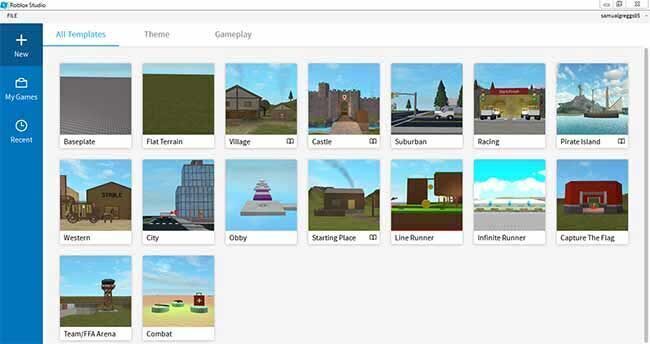
Hope this guide to download roblox studio and install it on your pc will help you get roblox studio on your pc.
If you have any other problems regarding roblox studio, such as how to update roblox studio or how to open explorer in roblox studio, then don’t worry; because very soon we will be posting all the roblox studio troubleshooters which may solve all such issues currently users facing in the studio.
Also, we will be sharing some roblox studio keyboard shortcuts you can use to reduce your time of operating roblox studio to play games or create one.
So stay tuned to know more about the roblox studio and keep playing the roblox games and exploring new games in the roblox community.